Lucky Hills: A Practical Mobile Browsing Guide for Canadian Players
Mobile browsing can be the simplest way to explore an online blackjack Canada platform, but a small screen changes how you check games, account tools and security details. The Lucky Hills casino offers browser access on smartphones and tablets, with casino, live-table, sportsbook, Cashbox and profile areas available without requiring native software. That makes the quality of your browser session, connection and device settings especially important. This guide explains how to use the mobile experience efficiently, what the install options appear to mean, and which limitations to consider before relying on a phone or tablet.
What can you do from a mobile browser?
The mobile site is designed to provide more than a simplified game lobby. According to the available information, smartphone and tablet users can browse casino titles, open live-table areas, move through sportsbook sections, review promotional pages and access account settings. Cashbox functions are also included, so the mobile view is intended to support account administration as well as browsing.
A responsive layout is useful when you want to compare game categories without sitting at a desktop. Blackjack, roulette, live casino and other sections can be reached through the main navigation, while provider or game-name searches can help reduce scrolling. On a smaller screen, however, menus may collapse into icons or expandable panels. Take a moment to confirm which section you have opened before selecting a game or account action.
Mobile access does not remove the need to read the information attached to a title. Individual game rules are available within games, and tournament, lottery and promotional areas can have separate conditions. If a page includes a badge, wagering label or campaign message, open the relevant details rather than relying on the short description visible in the lobby. This is particularly helpful when using a phone, where important text may sit below the first screen.
How should you prepare a phone or tablet?
Begin with a current operating system and an up-to-date browser. Updates can improve compatibility, close known security weaknesses and reduce problems caused by older web standards. Use a private device where possible, rather than a public computer or a phone borrowed from someone else. A screen lock, device passcode and automatic update setting provide a basic layer of protection before you open any account page.
Connection quality also affects mobile browsing. A weak cellular signal or unstable public Wi-Fi can interrupt a live table, reload a game or leave a page appearing incomplete. If a screen behaves unusually, avoid repeatedly submitting the same action. Check whether the page has finished loading, refresh once if appropriate, and review the account or transaction area before trying again. This reduces the chance of confusion after an interrupted session.
Browser permissions deserve attention as well. You may choose whether the browser stores passwords, allows notifications or retains site data. Convenience features can be useful, but they should be considered carefully on a shared device. For broader Canadian online-safety guidance, readers can consult Canada’s Get Cyber Safe resources. That information is general security advice, not confirmation of any casino-specific protection or availability.
Is the install option a native app?
The available material distinguishes between browser access and an installable web experience. The site displays an “Install app” entry and also refers to a PWA route. A progressive web app is generally a website that can be added to a device’s home screen and opened in an app-like window. It does not automatically mean that a separate application has been verified through the Apple App Store or Google Play.
This difference matters when deciding how to access the service. A home-screen shortcut may make future browsing quicker, while the underlying experience can still depend on the browser, connection and website updates. Before installing anything, inspect the address shown by the browser and confirm that you are adding the intended website rather than downloading an unrelated file. Do not provide account details to a page reached through an unexpected advertisement or message.
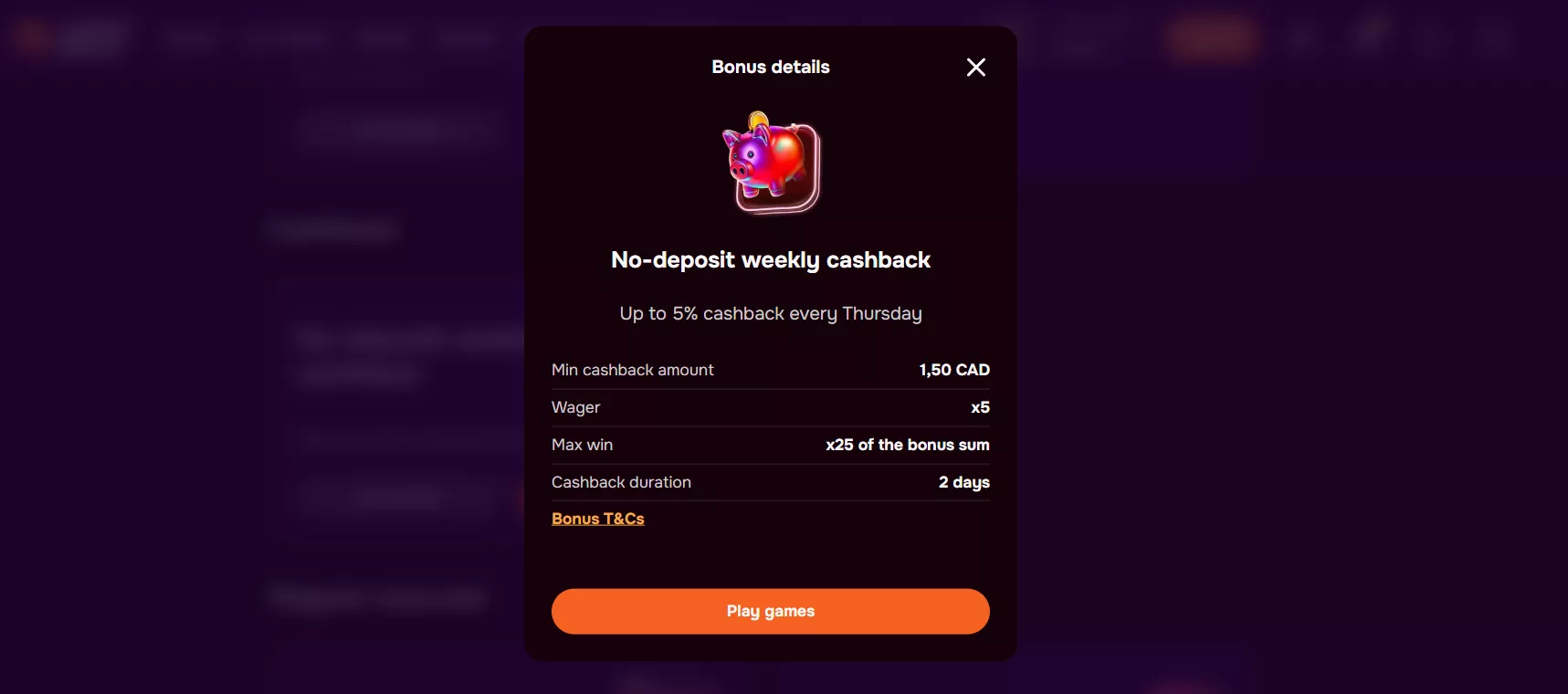
Installation is optional, based on the supplied information. You can continue using the mobile browser without adding a shortcut, which may suit people who share devices or prefer not to collect site icons. If you do use the PWA-style option, learn how to remove it from your device and check which notifications or permissions are active. The advertised app-install promotion should also be treated as campaign-specific; its conditions and availability should be checked in the current account or promotional information.
Which mobile habits prevent avoidable mistakes?
Use the official address you already know, or type it manually, rather than following links from unsolicited emails, social posts or pop-up adverts. Confirm that the connection is encrypted and that the address is spelled correctly before entering credentials. Avoid saving a password in a browser used by other people. When finished, use the site’s log-out control, especially on a family tablet, workplace device or shared accommodation network.
Keep financial and account checks separate from casual browsing. If you are reviewing Cashbox information, slow down and confirm the selected section, currency and amount before submitting anything. The available information lists CAD support and Interac among possible account or payment options, but the precise selection can depend on the account and payment location. Do not assume that a method visible on another device or account will appear on yours.
Notifications can also create distraction. A message about a promotion, update or account event should lead you back to the website through a trusted route, not directly to an unfamiliar page. Be cautious with browser extensions, screen-sharing requests and remote-support tools. No legitimate browsing task should require you to reveal a password or allow an unknown person to control your phone. If access problems persist, use the listed support channels rather than repeatedly changing account details.
When is mobile browsing less suitable?
A phone is convenient for short sessions, quick checks and browsing while away from a computer, but it is not always the clearest option. Small text, touch controls and compressed tables can make rules or account records harder to inspect. A larger screen may be preferable when comparing several game rules, reading promotional conditions, reviewing transaction history or checking a detailed verification request.
Live content can be particularly demanding. A mobile connection may fluctuate between cellular data and Wi-Fi, and battery-saving settings can limit background activity. If a session becomes unstable, do not infer from a frozen screen that an action failed or succeeded. Reopen the relevant history or account area when possible, and keep records of unusual messages or interrupted pages before contacting support.
Privacy is another limitation. Browsing in a public place can expose account details to people nearby, while public Wi-Fi may not be appropriate for sensitive account actions. Consider waiting until you have a private setting and a trusted connection. Mobile access is best viewed as a flexible browsing method, not a reason to overlook device security, page details or the operator’s stated requirements. Availability of particular games, tools and campaigns can also vary by location.
Mobile browsing FAQ
Do I need to install an app to browse on a phone?
No. The available information says smartphones and tablets can use browser access without native software. An “Install app” or PWA option may add a website shortcut or app-like experience, but it should not automatically be treated as a separately verified iOS or Android application.
Can I use account tools from a mobile device?
The mobile experience is described as including Cashbox, account settings, promotional pages and other account areas. The exact options shown can depend on the account and location. Check each page carefully before submitting an action, and review the operator’s current requirements if a feature is unavailable.
What should I do if a mobile page stops responding?
Check the connection, wait for the page to finish loading and refresh only when appropriate. Avoid submitting the same action repeatedly. Then review relevant history or account records. If the problem continues, record the message and contact support through the currently listed chat or email channel.